⚙️ VIDEO SETTINGS
optimised for performance & visibility · competitive tuning · benchmark‑inspired
LOW negligible FPS impact
MEDIUM moderate FPS gain/loss
HIGH huge FPS impact
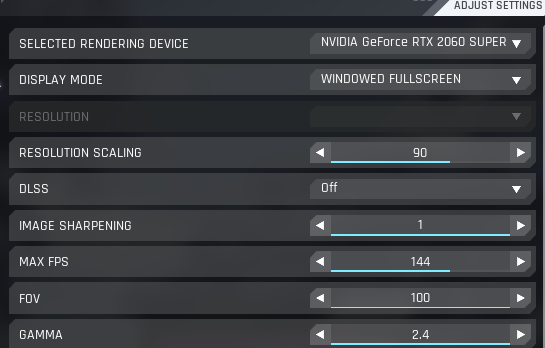
Rendering Device
LOW IMPACT
Always your dedicated GPU. iGPU = slideshow. (AMD: same)
⚡ 0–2% difference
Display Mode
LOW IMPACT
Windowed Fullscreen – fastest alt‑tab, zero latency penalty. True fullscreen gives +1‑3% FPS but slower switching.
💡 Pros use windowed fullscreen for stability.
Resolution Scaling
HIGH IMPACT
Lower = huge FPS boost, softer image. Use GPU headroom:
- GTX 10‑series / RX 500 → 75% (≈ +40% FPS)
- RTX 20/30 / RX 6000 → 90% (≈ +20% FPS)
- RTX 40+ → 100% (native)
📊 75% scaling can double FPS on low‑end
DLSS / FSR
HIGH IMPACT
At 1080p avoid – blur. At 1440p/4K, Quality mode = +30‑50% FPS with near‑native clarity.
⚡ RTX 40‑series: Frame Gen adds +70% FPS but +5ms latency – skip for PvP.
Image Sharpening
LOW IMPACT
ON – costs 1‑2 FPS, drastically improves perceived clarity, especially after upscaling.
Max FPS
MEDIUM IMPACT
Cap at 120 – The Cycle’s engine delivers smoothest frametimes here, even on 144Hz.
📉 uncapped → more hitches
FOV
LOW IMPACT
95‑105 = wider view, 80‑90 = more zoom. No FPS cost – personal.
Gamma
LOW IMPACT
2.2 – 2.4 – brightens shadows without washout. Helps spot campers.
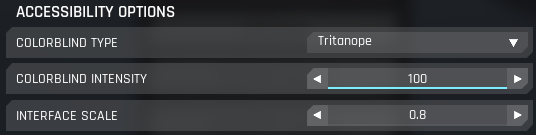
Colorblind Mode & Interface Scale
LOW IMPACT
Zero performance cost. Adjust UI scale to preference – larger for readability, smaller for more screen space.
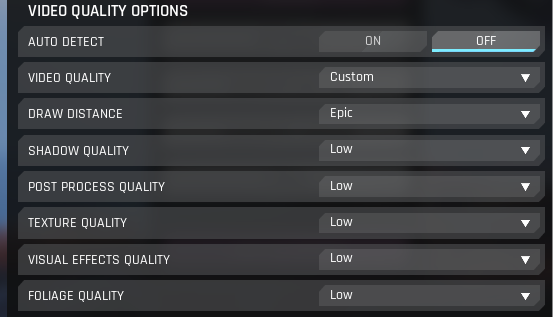
Auto Detect
LOW IMPACT
OFF – auto profiles are never optimised for competitive FPS.
Draw Distance
HIGH IMPACT
Critical for spotting. Set as high as your GPU allows – never Low. Low = enemies pop in late.
📊 High vs Low: 10‑15% FPS difference
Shadow Quality
HIGH IMPACT
LOW – biggest single FPS gain (up to 30%). Enemies still cast shadows, so no disadvantage.
📈 Low = +25‑30% FPS over Ultra
Post Process Quality
LOW IMPACT
Bloom, motion blur, DOF – Medium/High costs <3% FPS on modern cards. Low reduces visual clutter.
Texture Quality
LOW IMPACT
Set to Medium (4GB VRAM) or High (6GB+). Low makes game blurry for no gain – VRAM limit only.
Visual Effects
MEDIUM IMPACT
LOW = less smoke/explosion clutter, easier target tracking. High looks flashy but hides enemies.
📊 Low vs High: 8‑12% FPS difference
Foliage Quality
HIGH IMPACT
LOW – removes dense grass and bushes. Mandatory to spot prone enemies (“bush wookies”).
📈 Low = +15‑20% FPS over High
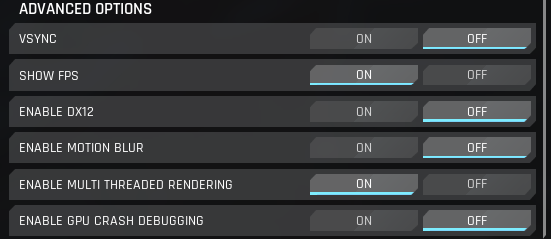
VSYNC
MEDIUM IMPACT
OFF – adds heavy input lag. Use FPS cap to eliminate tearing.
Enable DX12
MEDIUM IMPACT
RTX 20+ / RX 6000+ → ON (better CPU utilisation, +10‑15% FPS)
Older cards → OFF (DX11) (stability)
Older cards → OFF (DX11) (stability)
📊 DX12 can drop frames on GTX 10‑series
Motion Blur
LOW IMPACT
OFF – blurs targets during fast movement. No reason to enable.
Multi‑Threaded Rendering
MEDIUM IMPACT
ON – uses extra CPU cores, smooths frame times, especially on Ryzen.
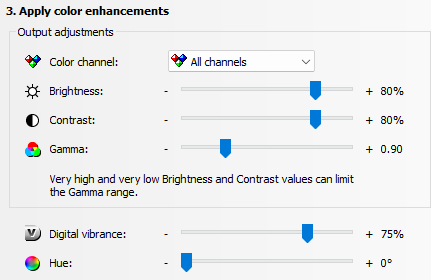
Digital Vibrance / Saturation
LOW IMPACT
NVIDIA: Digital Vibrance 60‑70% • AMD: Saturation +10‑20%. Makes enemies pop, costs 0 FPS.
💡 Don’t exceed 80% – you’ll lose colour detail.
⚡ QUICK REFERENCE
🔹 Max FPS
- ✅ Scaling 75%
- ✅ Shadows Low
- ✅ Foliage Low
- ✅ Effects Low
- ✅ DX11 (older GPUs)
- ✅ Cap FPS 120
🔹 Best Visibility
- ✅ Draw Distance High
- ✅ Foliage Low
- ✅ Shadows Low
- ✅ Sharpening On
- ✅ Gamma 2.4
- ✅ Vibrance 70%
🔹 Balanced
- ✅ Textures High
- ✅ Post‑Process Medium
- ✅ DX12 (if supported)
- ✅ Scaling 100%
- ✅ DLSS Quality (1440p+)